AI Tools
DraftMerge includes powerful AI features to help you write better emails faster: Icebreakers, Grammar Checker, and Translation.
Overview of AI Features
AI Icebreakers
Generate personalized opening lines for each recipient based on their data (company, role, industry). Makes your emails feel hand-written rather than templated.
✏️ AI Grammar Checker
Check your email templates for grammar, spelling, and style issues before sending. Catches errors that could hurt your professional credibility.
🌐 AI Translation
Translate your email templates into multiple languages. Reach international prospects in their native language for higher engagement.
Enabling AI Features
Before using AI tools, you need to enable them in DraftMerge settings:
- Open DraftMerge extension
- Go to Settings
- Find the AI Features section
- Choose your AI provider:
- Chrome Built-in AI (free, on-device, requires Chrome 131+)
- Cloud LLM (requires API key from Google, OpenAI, etc.)
- Toggle on the features you want: Icebreakers, Grammar, Translation
- Save settings
1. AI Icebreakers
Icebreakers are personalized opening lines generated for each recipient. Instead of "Hi {{first_name}}, I hope this email finds you well," you get something unique and relevant.
How It Works
- In the Template step, click the AI Icebreaker button
- DraftMerge analyzes your recipient data (company, role, industry columns)
- AI generates a unique opening line for each recipient
- Review and edit if needed
- The icebreaker is inserted into your template
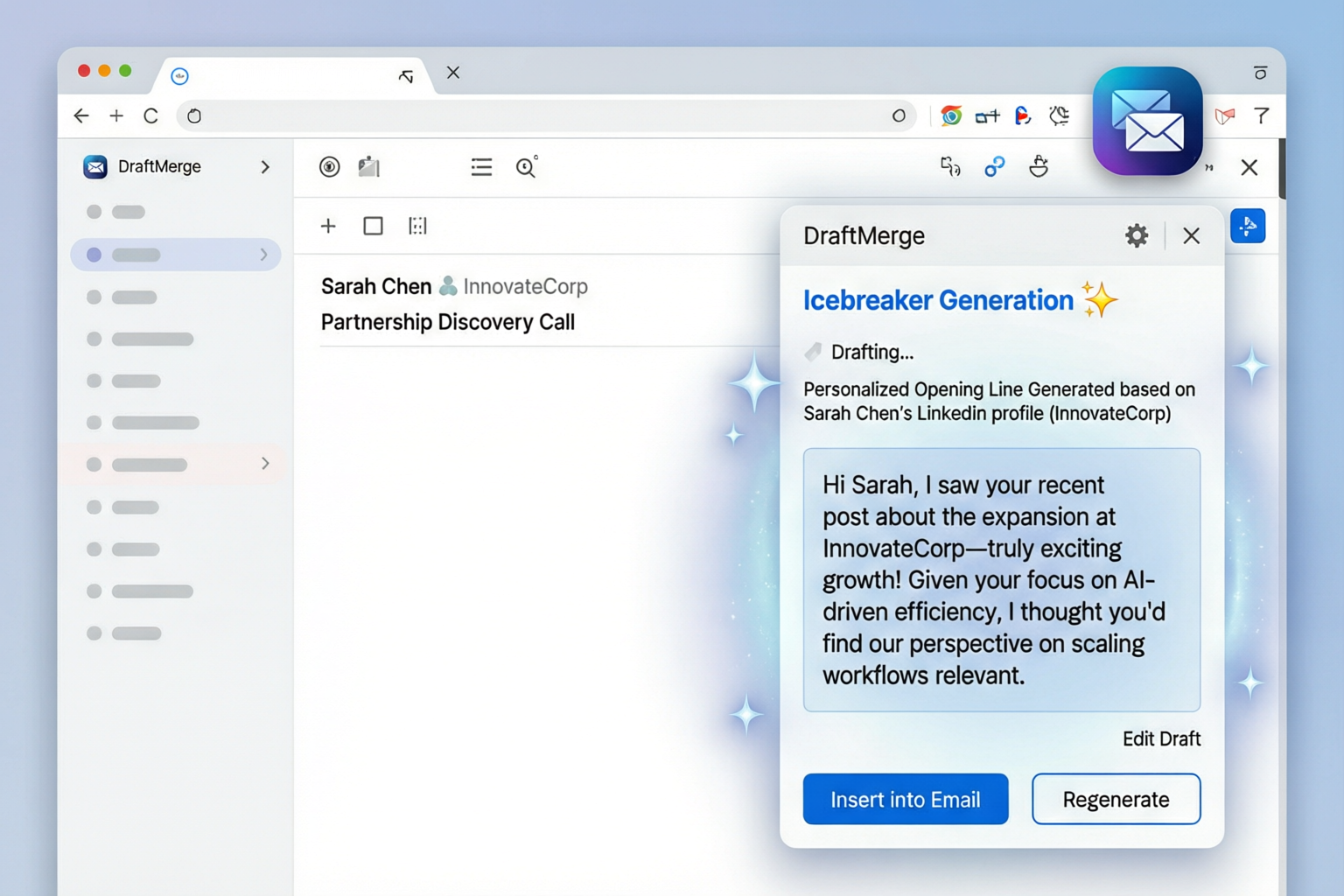
Figure 1: AI Icebreaker generation panel
Example Output
first_name: Sarahcompany: TechCorprole: VP of MarketingGenerated Icebreaker:
"Hi Sarah, I noticed TechCorp's recent expansion into the European market — congrats on the growth! As VP of Marketing, you're probably looking for ways to scale your outreach efficiently..."
Tips for Better Icebreakers
- Rich data = better output: Include columns like
company,role,industry,recent_news - Keep it relevant: Don't force personalization if the data is sparse
- Review before sending: AI can sometimes hallucinate — always skim the generated lines
- Test with a small batch first: Send to 5-10 recipients to verify quality
2. AI Grammar Checker
Catch typos, grammar mistakes, and awkward phrasing before your emails go out to hundreds of recipients.
How to Use
- In the Template step, write your email
- Click the AI Grammar Check button
- DraftMerge scans your subject and body
- Issues are highlighted with suggestions
- Click a suggestion to apply it, or dismiss it
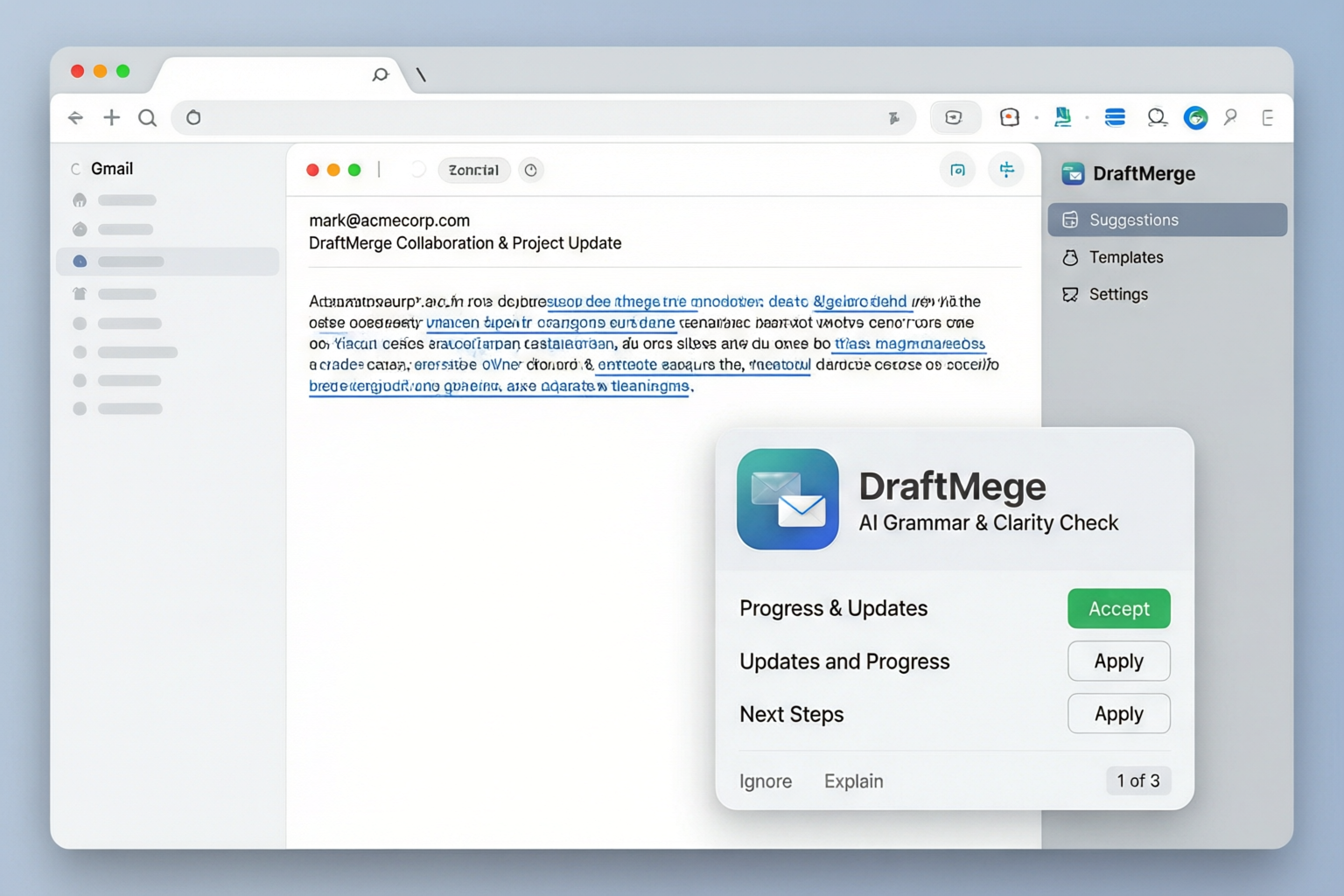
Figure 2: AI Grammar Checker with suggestions
What It Catches
- Spelling errors: "recieve" → "receive"
- Grammar issues: "their" vs "there", subject-verb agreement
- Punctuation: Missing commas, run-on sentences
- Style suggestions: Passive voice, wordy phrases, jargon
- Tone checks: Overly formal or casual language
"Hi John, I hope your doing well. We has a new product that could of interest to your team."
After AI Grammar Check:
"Hi John, I hope you're doing well. We have a new product that could be of interest to your team."
3. AI Translation
Translate your email templates to reach international prospects. DraftMerge supports 50+ languages.
How to Use
- In the Template step, write your email in your source language
- Click the AI Translate button
- Select the target language from the dropdown
- Review the translation
- Save or create multiple language versions
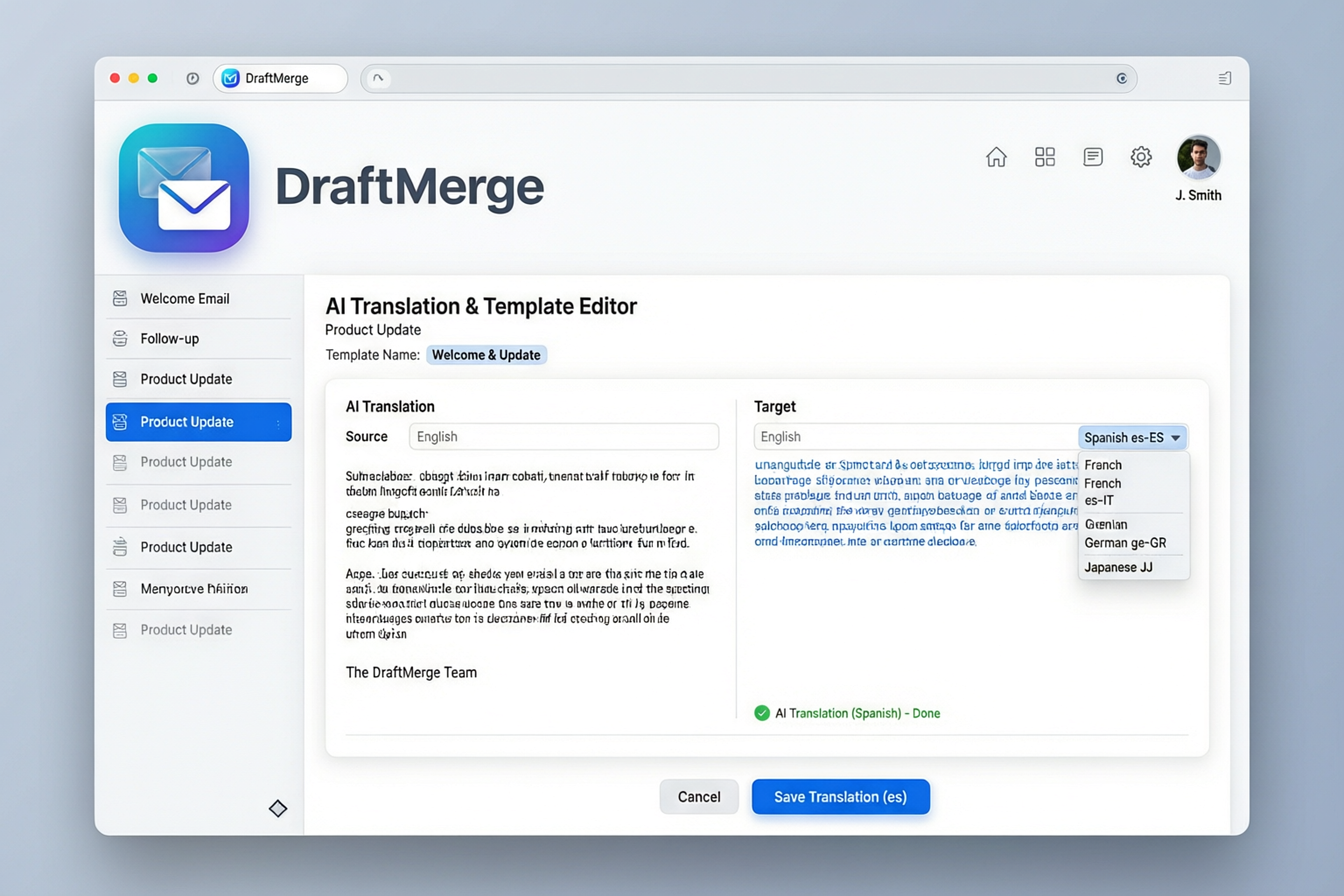
Figure 3: AI Translation with language selector
Supported Languages
Popular languages include:
- Spanish (Español)
- French (Français)
- German (Deutsch)
- Portuguese (Português)
- Italian (Italiano)
- Dutch (Nederlands)
- Russian (Русский)
- Chinese Simplified (简体中文)
- Japanese (日本語)
- Korean (한국어)
- Arabic (العربية)
- Hindi (हिन्दी)
Translation Best Practices
- Keep it simple: Avoid idioms, slang, and complex metaphors — they don't translate well
- Use merge fields carefully: Ensure
{{first_name}}and other variables are preserved - Review cultural context: Some phrases may be offensive in other cultures
- Test with native speakers: If possible, have a native speaker review critical campaigns
- Consider locale-specific formatting: Date formats, number formats, address formats vary
"Hi {{first_name}}, I hope this email finds you well. I wanted to reach out about {{company}}'s marketing needs."
Spanish:
"Hola {{first_name}}, espero que este correo te encuentre bien. Quería contactarte sobre las necesidades de marketing de {{company}}."
AI Usage Limits
| Plan | AI Requests/Day |
|---|---|
| Free | 50 |
| Individual | 500 |
| Workspace | 2,000 |
| Multisend | Unlimited |
Troubleshooting AI Features
"AI not available" error
- Ensure you're using Chrome 131 or later (for Built-in AI)
- Check that AI features are enabled in Settings
- For Cloud LLM: verify your API key is valid and has credits
- Try refreshing the extension (close and reopen)
AI generates poor quality output
- Provide more context in your recipient data (company, role, industry)
- Try rewording your prompt or template
- Switch between Built-in AI and Cloud LLM to compare quality
- For translations, simplify your source text
AI is slow
- Chrome Built-in AI runs on your device — performance depends on your computer's specs
- Cloud LLM speed depends on your internet connection and the provider's servers
- Large templates with many merge fields take longer to process
Related Topics
Need Help?
If AI features aren't working as expected:
- Check our Troubleshooting Guide
- Submit a request via our Support Form